Controlling Audio
Use the iPad and the WING CoPilot app to control Mackey Hall audio levels and mute states during the service.
Before Service
Confirm the Sound System Is On
Skip this if you already turned on the sound system during setup.
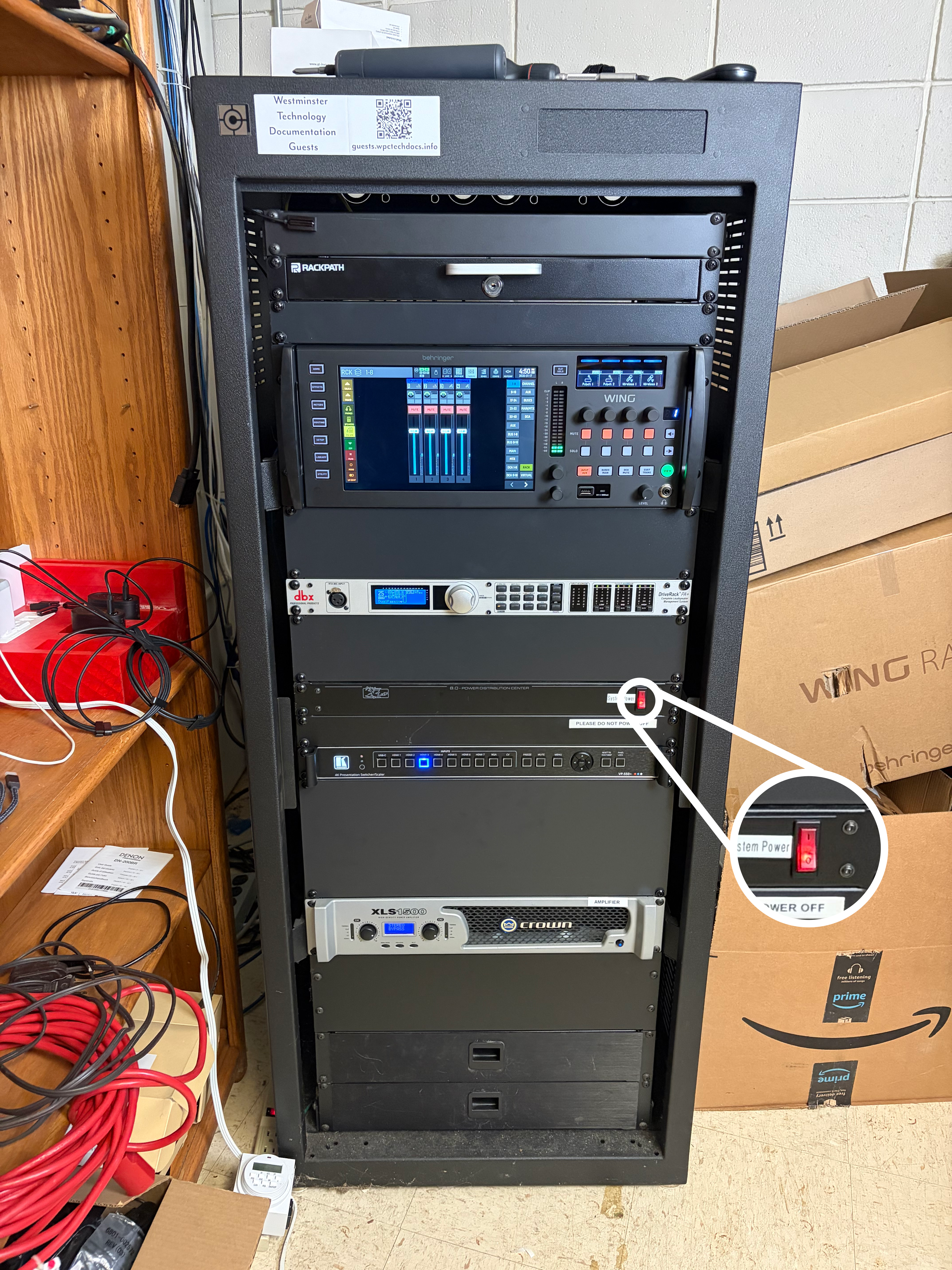
- Go to the sound system rack.
- Find the red
Powerswitch. If it is not lit red, turn it on.
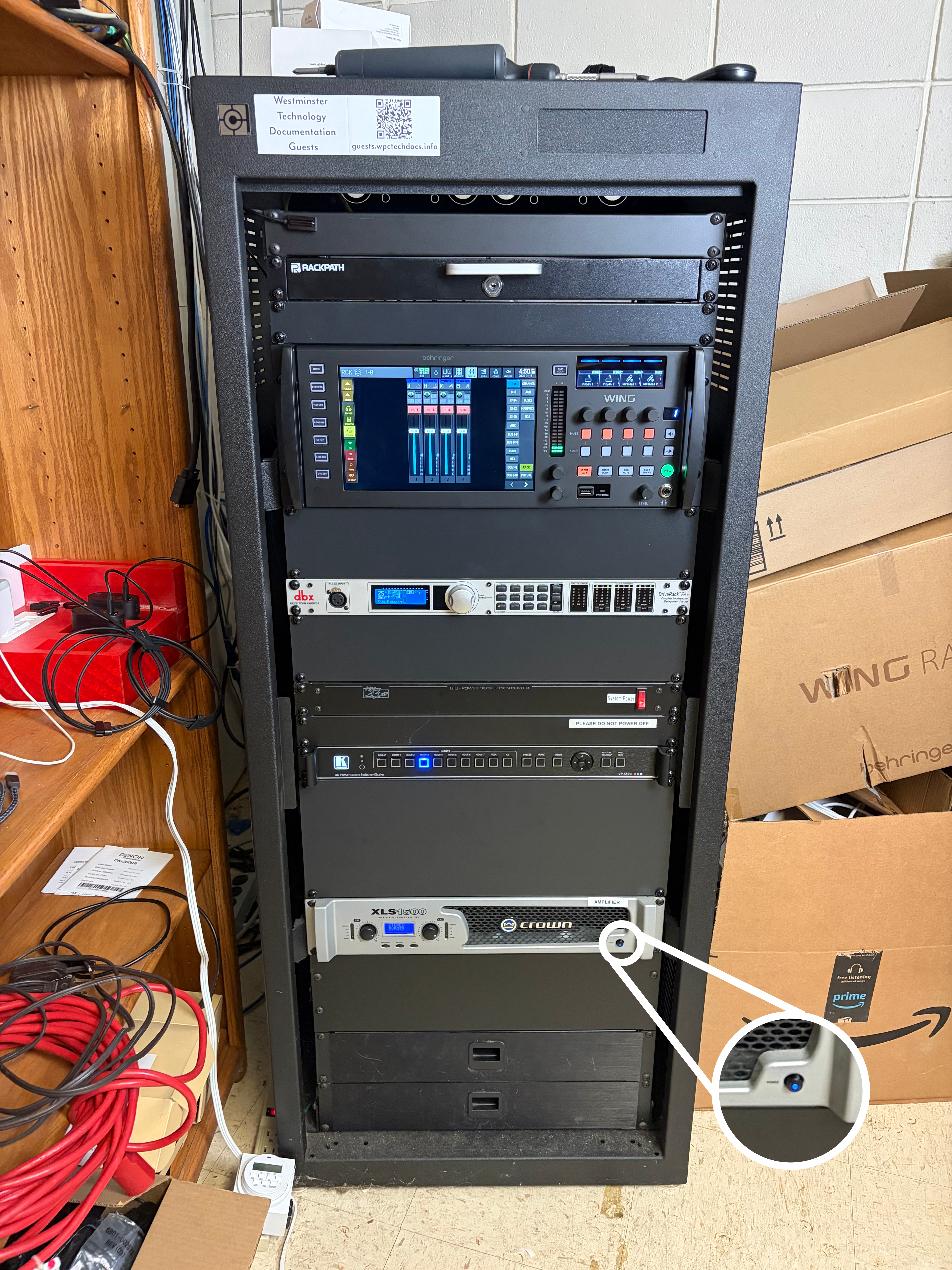
- Locate the amplifier, third unit from the bottom of the rack.
- Press the amplifier power button at the bottom-right.
- Confirm the button lights blue.
Get the iPad
- Get the iPad from the top drawer of the sound system rack, unless it is already out from setup.
- Wake and unlock the iPad.
Connect to the Mixer
Open WING CoPilot
- Open the
WING CoPilotapp.

Select the Mackey Hall Mixer
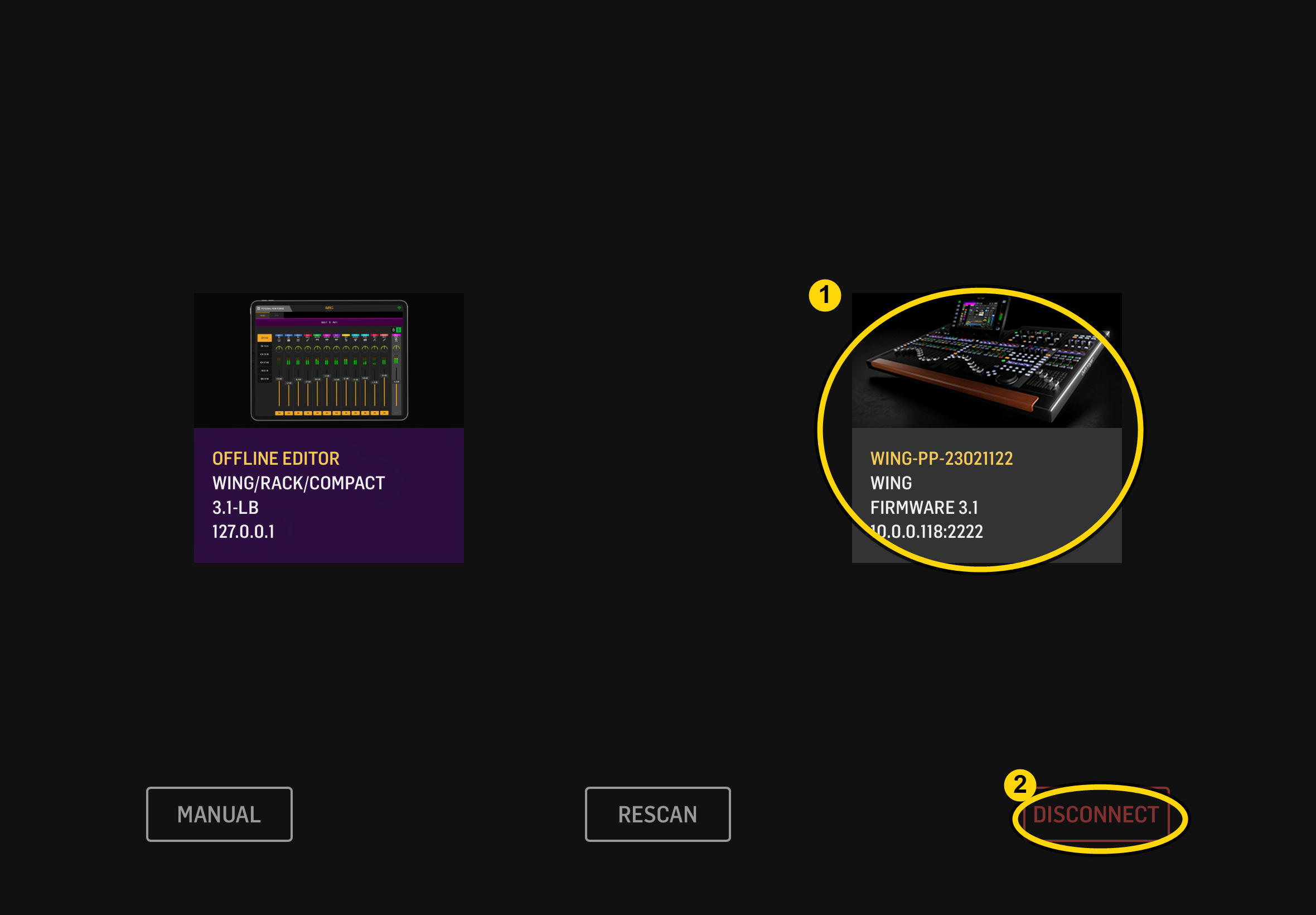
- On the WING CoPilot home screen, tap
WING-PP-23021122. - Wait for the mixer controls to open.
- Do not use the
Offline Editortile for service audio.
Callouts:
- Tap the Mackey Hall WING mixer tile.
- Use
Disconnectonly when forcing a reconnect.
During Service
Main Controls
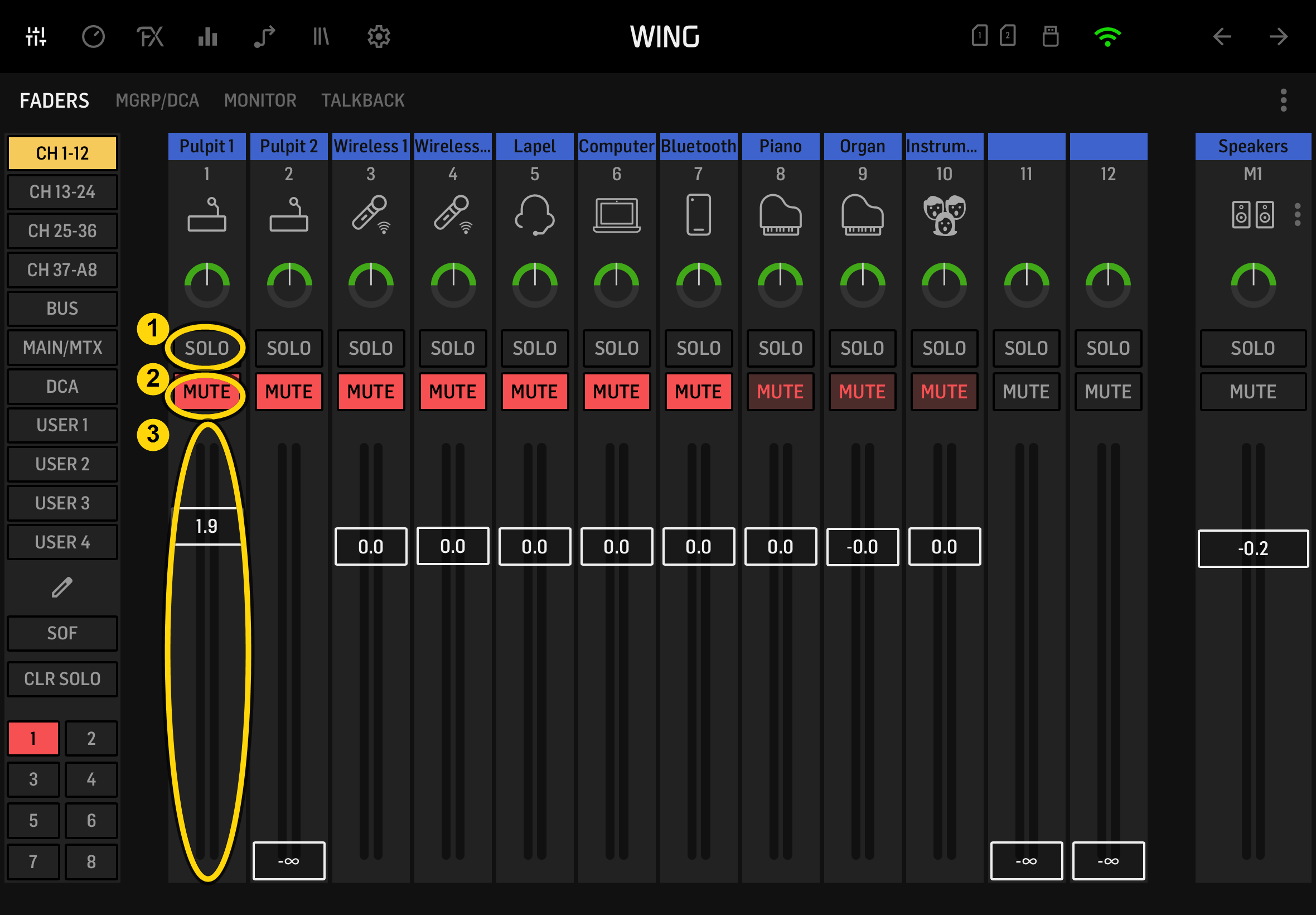
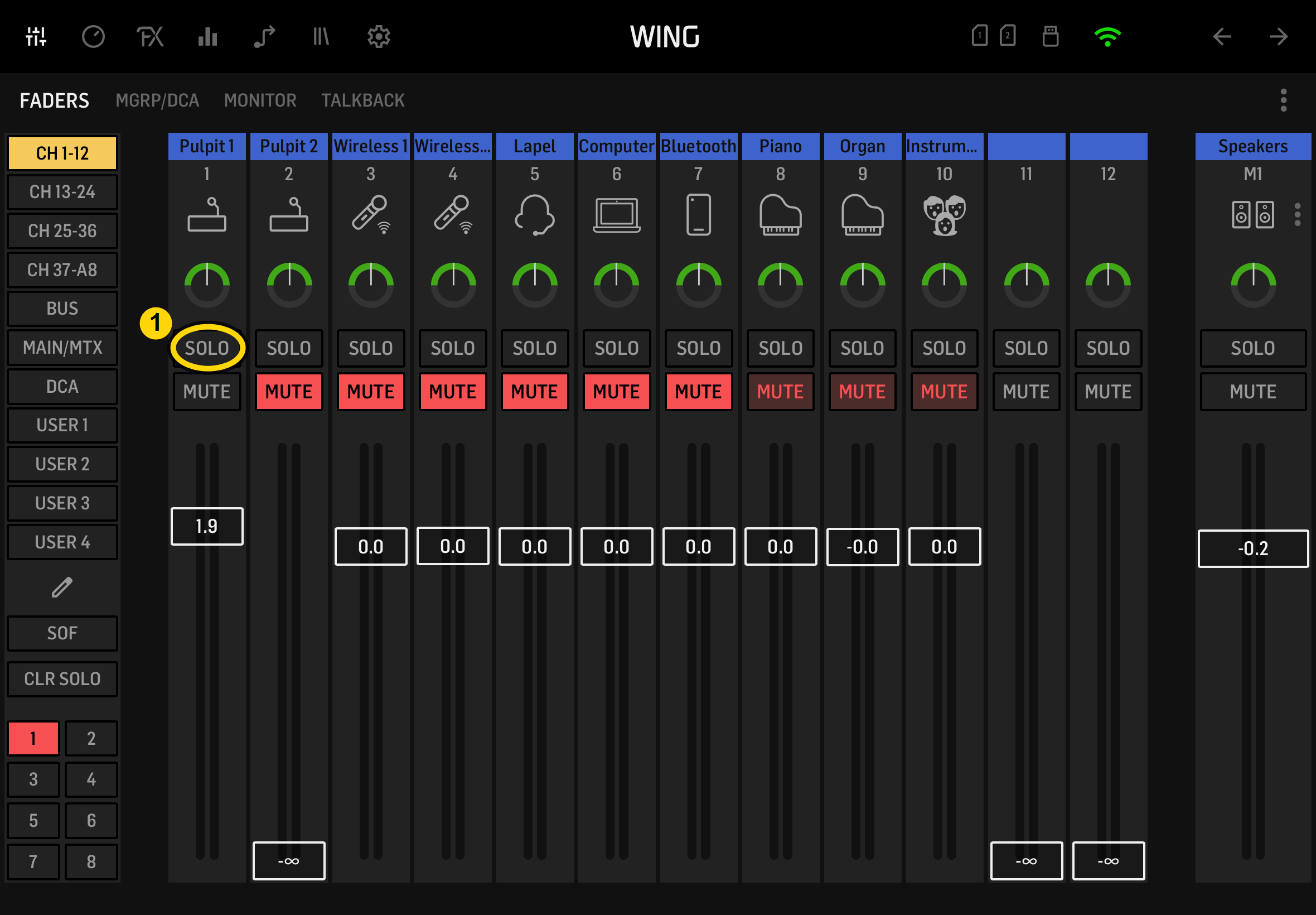
The main mixer page shows each audio source as a vertical channel strip.
Callouts:
SOLOis not usually needed for normal service control. It will solo just that one fader and essentially mute all other faders.MUTEturns that channel on or off. Red means muted. Gray means unmuted.- The vertical fader controls the channel volume. 0.0 is the standard volume.
Unmute One Channel
If only one source is needed, unmute only that source.
- Find the correct channel name at the top of the strip.
- Press that channel's red
MUTEbutton. - Confirm the button turns gray.
- Leave the other channels muted.
Callout:
- This example shows one channel unmuted while the surrounding channels stay muted.
Adjust Volume with the Sliders
- Move a channel fader up to make that source louder.
- Move a channel fader down to make that source quieter.
- Make small changes and listen before adjusting again.
- Avoid large jumps during the service.
Callouts:
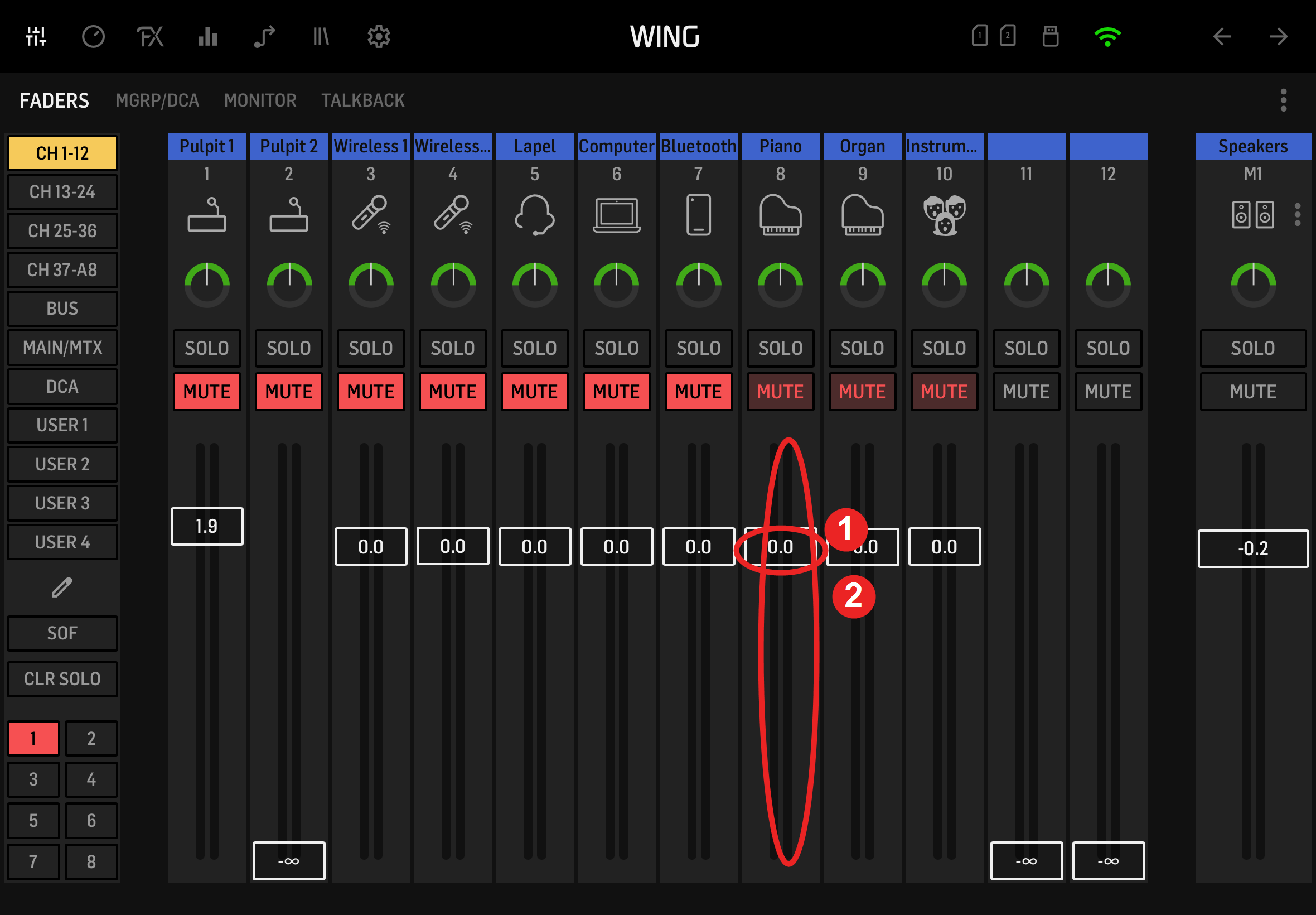
- The vertical fader is the volume slider for that channel.
- The number shows the current fader level.
0.0is the standard volume.
Unmute the Music Microphones Together
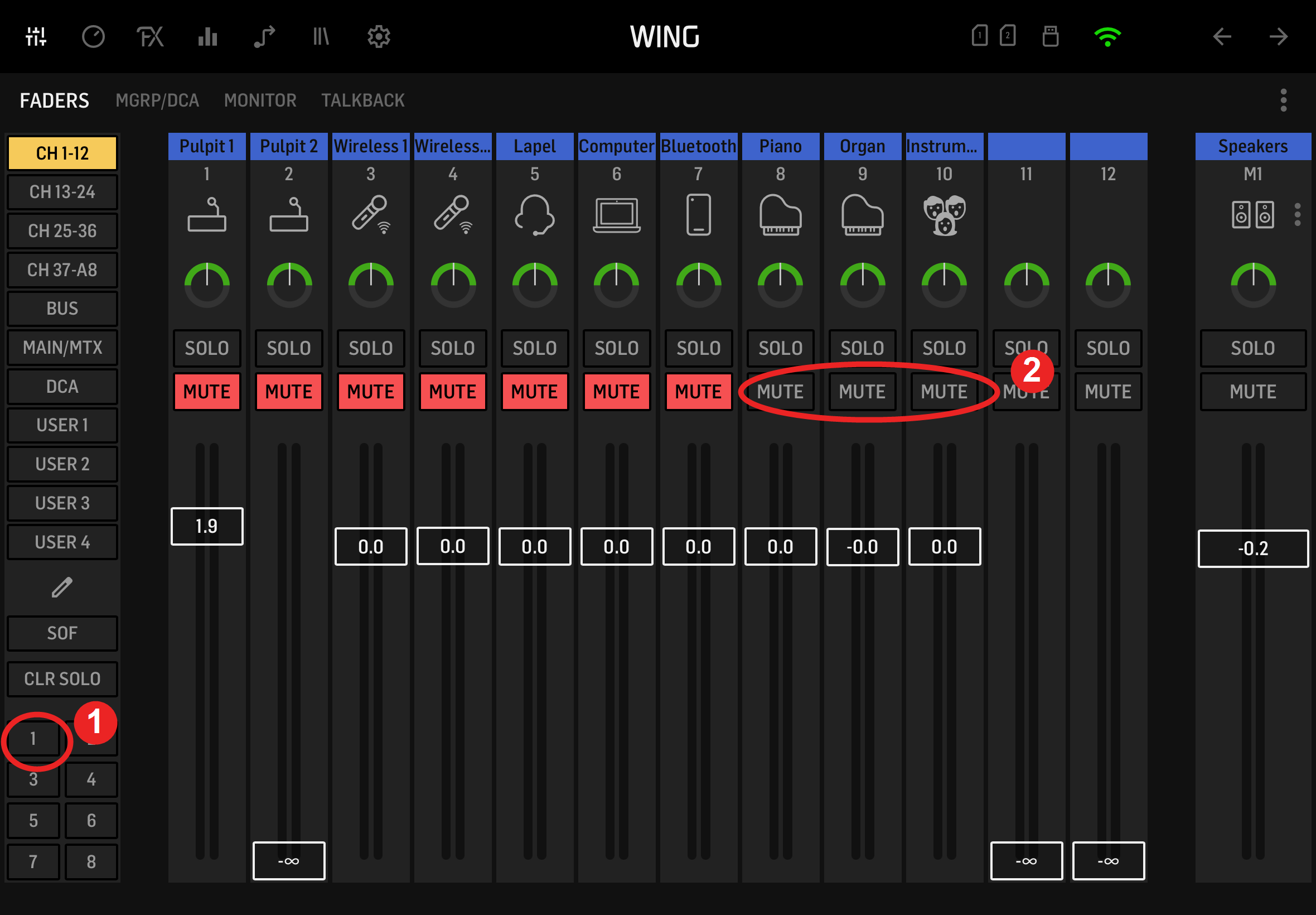
The music microphone group is tied to channels 8-10: Piano, Organ, and Instrument. Use this when the music microphones need to come on together.
- Press the small red
1group button in the lower-left of the screen. - Confirm the
MUTEbuttons on channels 8-10 turn gray. - Leave channels muted if they are not being used.
Callouts:
- The small red
1button controls the music microphone group. - Channels 8-10 are the music microphone channels that should change from red to gray.
Troubleshooting
Force a Reconnect
Sometimes WING CoPilot appears connected but stops responding correctly. If the app is stale, force a reconnect.
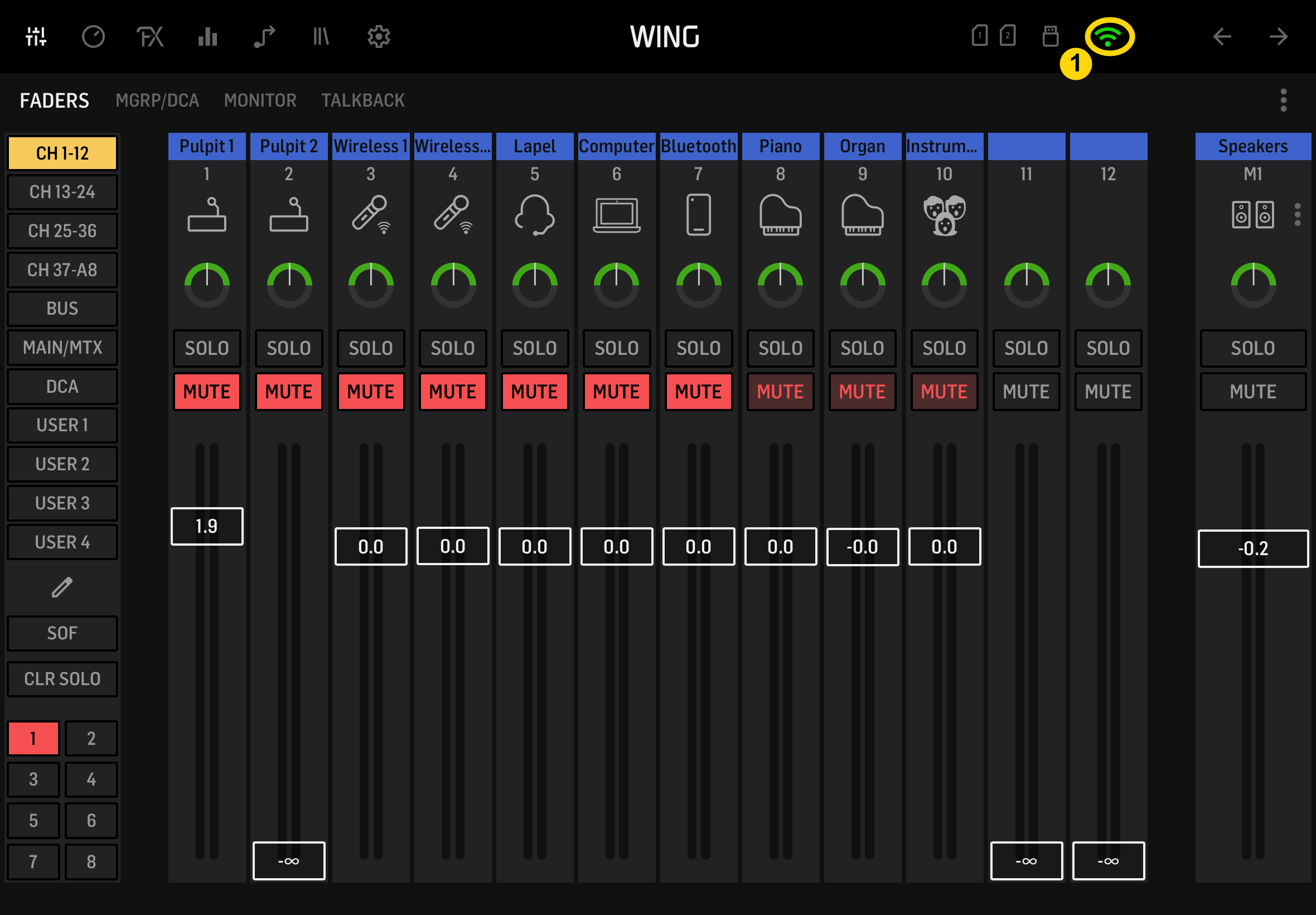
- On the mixer page, press the green Wi-Fi button at the top.
- On the home screen, press
Disconnect. - Tap
WING-PP-23021122again to reconnect. - Confirm the mixer controls reopen and respond normally.