Using Audio Controls (Guest)
This guide explains how to use the iPad touchscreen audio controls in Mackey Hall.
If the sound system is not on, see Turning the Sound System On.
Get Control iPad
Locate the control iPad, which is housed in a black freestanding case. It is typically positioned on top of the sound system rack.
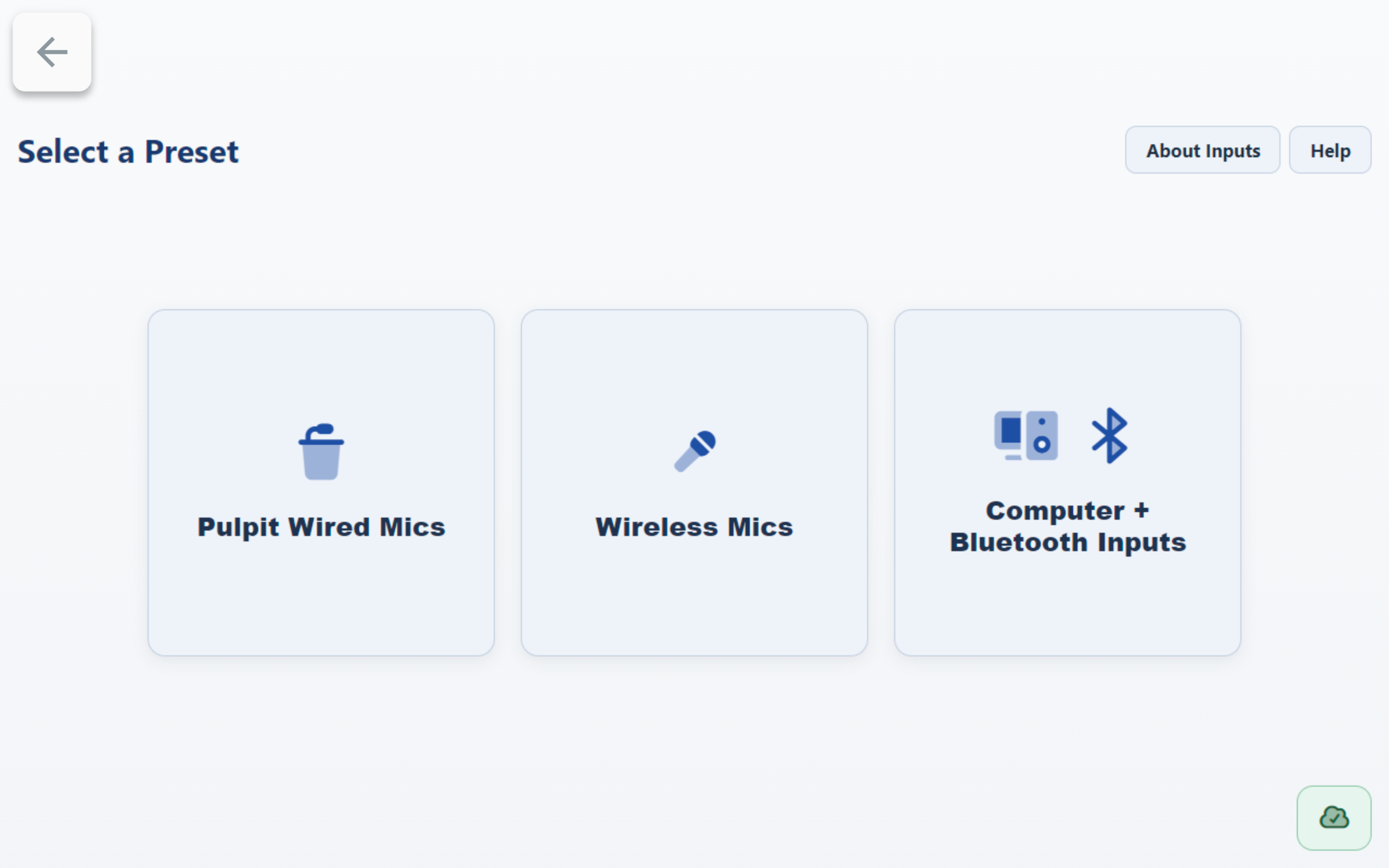
Select a Preset
- On the Select a Preset screen, choose the preset you need:
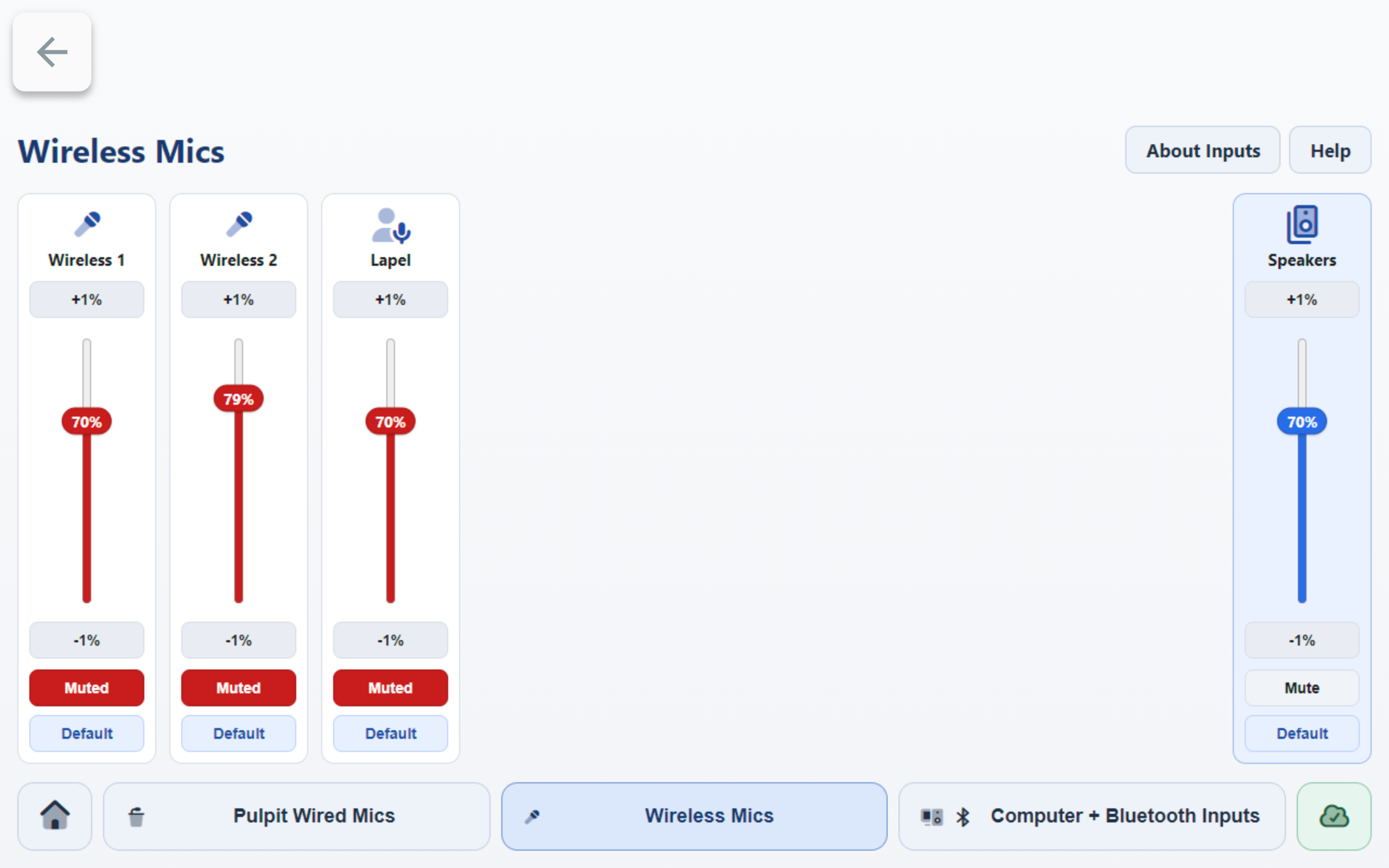
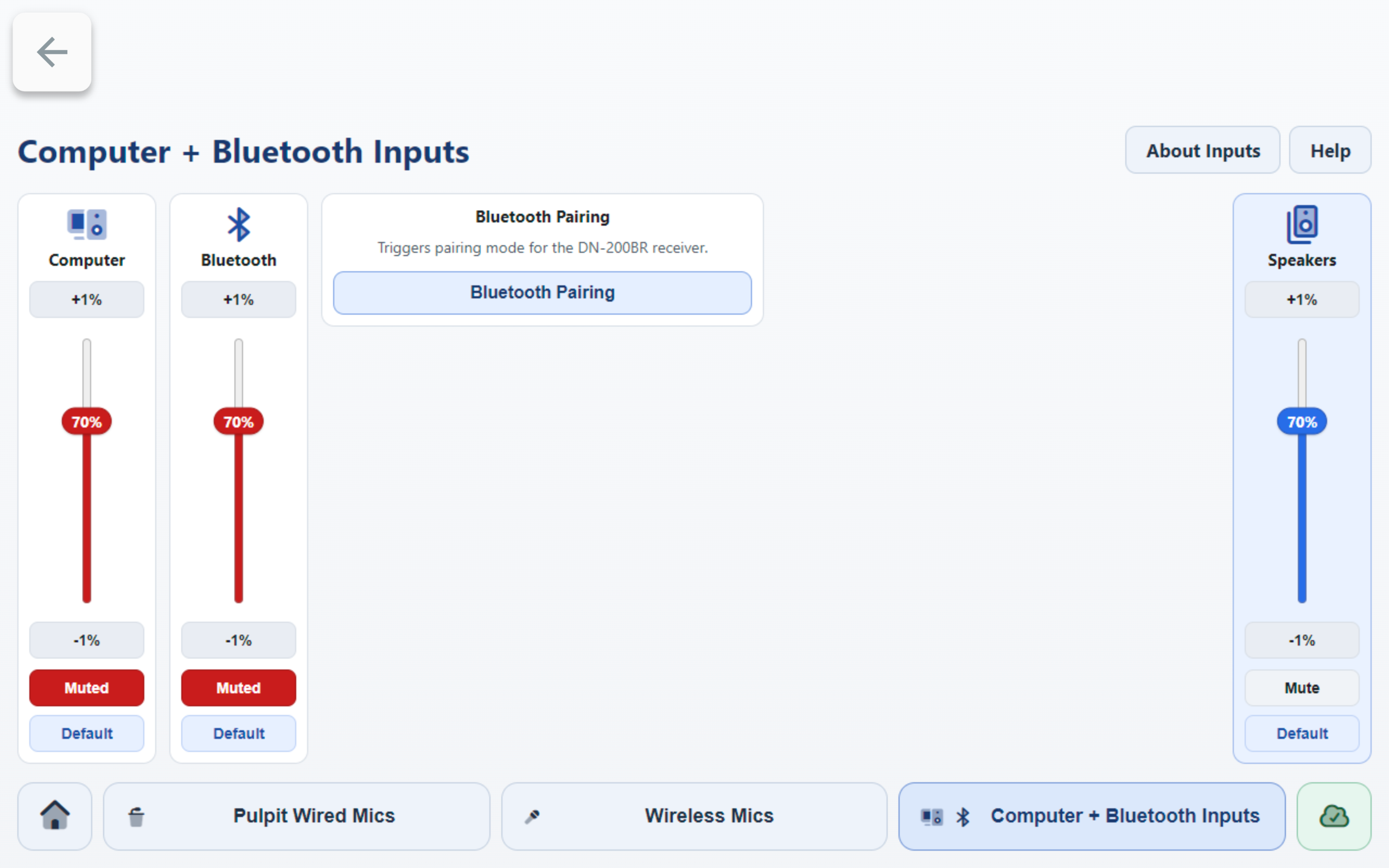
Pulpit Wired MicsWireless MicsComputer + Bluetooth Inputs
Adjust Channel Levels
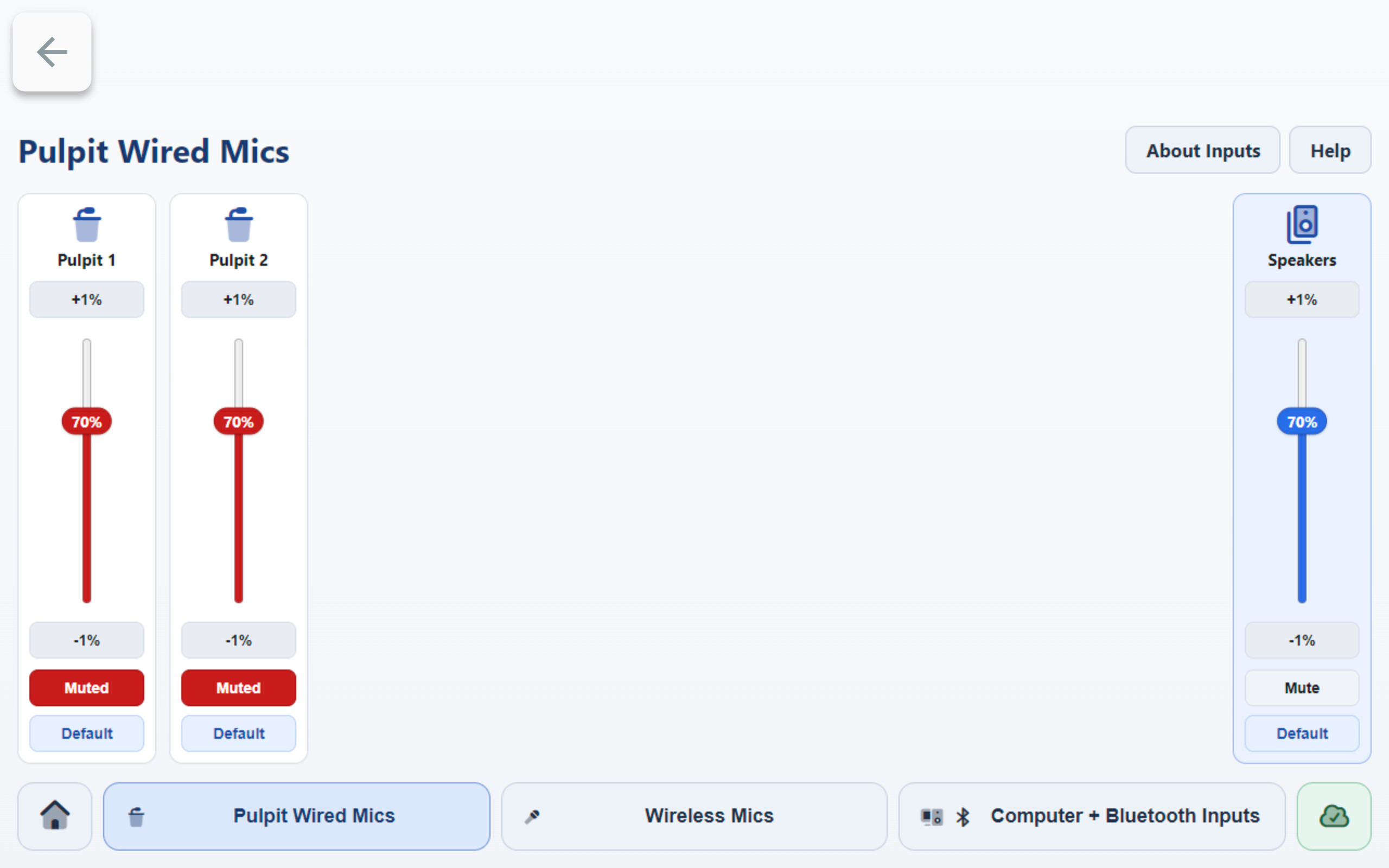
- Find the channel card you want to adjust.
- If a channel shows
Mutedin red, that channel is muted and no audio will pass. - Press
Mutedonce to unmute the channel. - Use
+1%,-1%, or the slider to set the channel level. - Use the
Speakerscard on the right (Master Output) for overall room output level.
Helpful On-Screen References
- Press
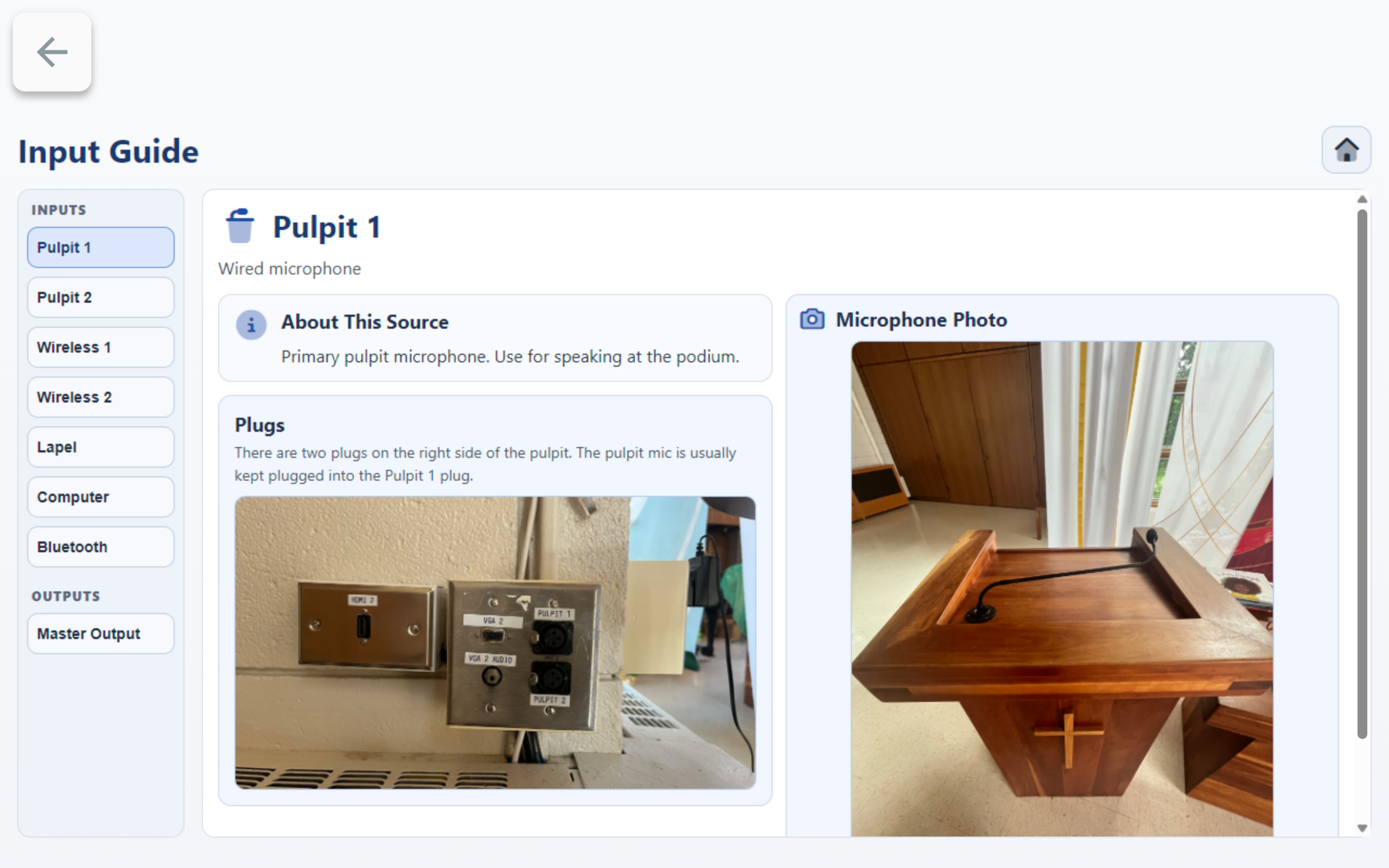
About Inputsfor source and connection reference details. - Press
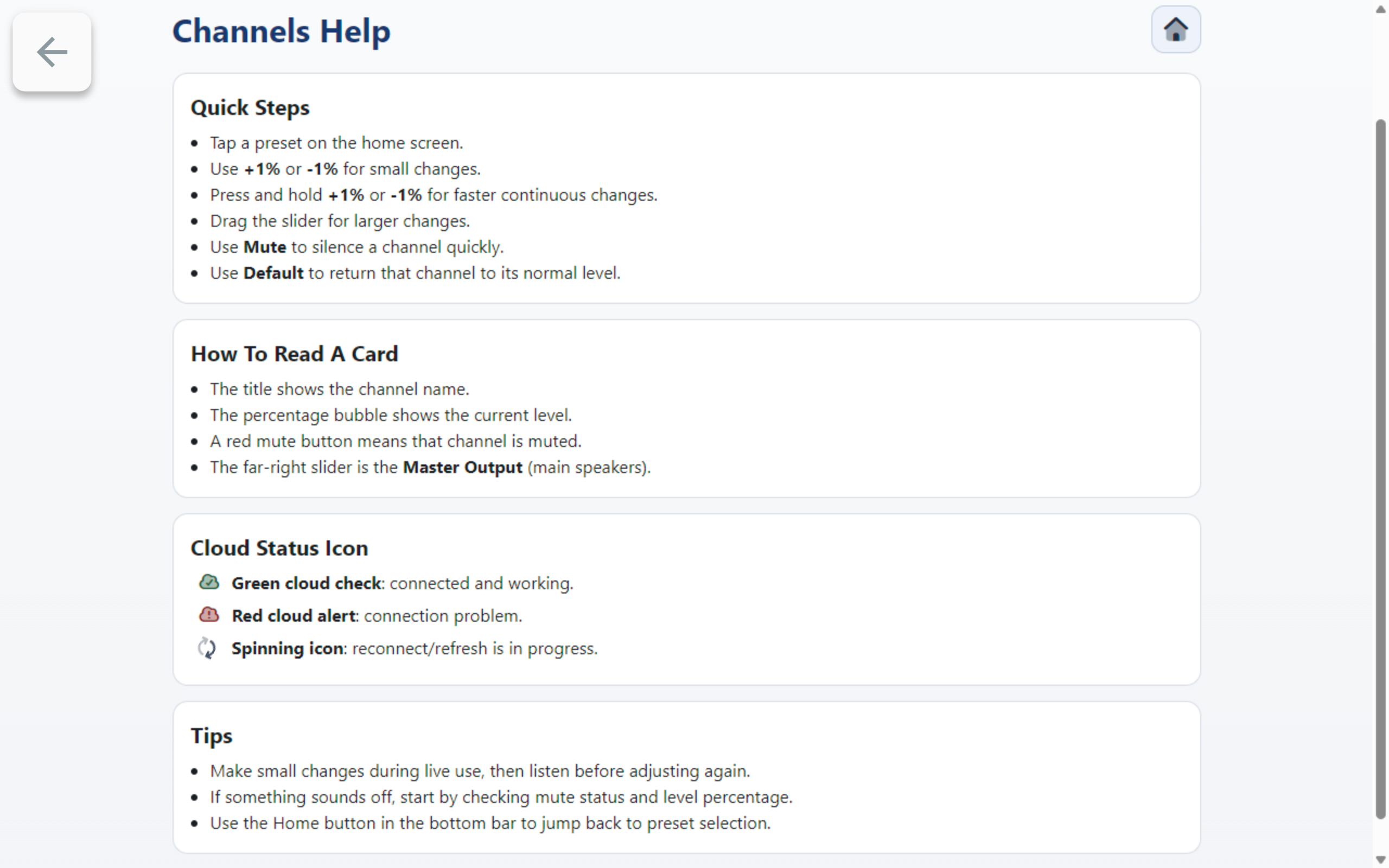
Helpfor quick control tips (+1%,-1%, hold to ramp, Mute/Unmute, and Default level behavior). - On
Help, a redMutedbutton means that channel is muted.